How to color grade footage for a warm cinematic look?
The warm cinematic look — golden highlights, rich skin tones, and teal-blue shadows — is the most popular creative grade in modern filmmaking. It creates an inviting, emotional, and professional feel. Here is how to achieve it in DaVinci Resolve or Premiere Pro.
Step-by-step in DaVinci Resolve
Step 1 — Color correct first. Fix white balance, exposure, and contrast so the image looks neutral and natural. Never grade on top of a technically incorrect image.
Step 2 — Lift the blacks slightly. In the Lift wheel (shadows), raise the master slider slightly. This creates that faded, cinematic look where shadows are dark gray instead of pure black.
Step 3 — Push warmth into the Gain (highlights). Move the Gain wheel slightly toward orange-yellow. This warms up highlights and skin tones — the signature golden look.
Step 4 — Push teal into the Lift (shadows). Move the Lift color wheel slightly toward teal-blue. This creates the complementary color contrast — warm highlights, cool shadows.
Step 5 — Desaturate slightly. Reduce overall saturation by 10-20%. Cinematic footage is rarely fully saturated — the slight desaturation adds sophistication.
Fine-tuning the look
Protect skin tones: Use the Qualifier tool to select skin tones, then adjust them independently. Skin should be warm and natural — never green or overly orange.
Add a subtle vignette: Darken the corners by 15-20% to draw the eye to the center of the frame.
Add a touch of grain: Very subtle film grain (2-5% in Resolve) adds an organic, filmic texture that digital footage lacks.
Subtlety is key: The best cinematic grades are invisible. If a viewer notices the color grading, it is probably too heavy. Pull it back 20-30% from where you think it looks good.
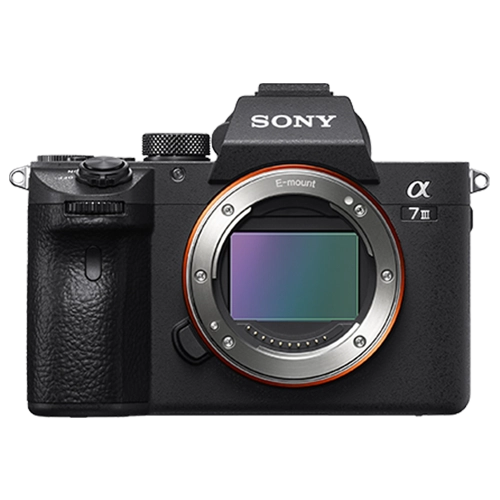
Cameras with Log for grading at Camera Shop Egypt
Using LUTs as a starting point
What is a LUT: A Look-Up Table that applies a preset color grade with one click. Many free and paid cinematic LUTs are available online.
How to use them: Apply the LUT after color correction, then reduce its intensity to 50-70%. Full-strength LUTs are almost always too heavy.
Free LUTs to try: DaVinci Resolve includes several built-in film emulation LUTs. Fujifilm, Canon, and Sony all provide free official LUTs for their Log profiles.
Do not rely on LUTs alone. A LUT is a starting point, not a finished grade. Always adjust after applying to match your specific footage and lighting conditions.
The fastest path to a cinematic look: shoot in S-Cinetone (Sony) or Faithful (Canon), lift the blacks slightly, push subtle warmth into highlights, and add a light vignette. This 2-minute grade transforms any footage.
Gear that does this
Available in Egypt and suited to what this guide covers.